
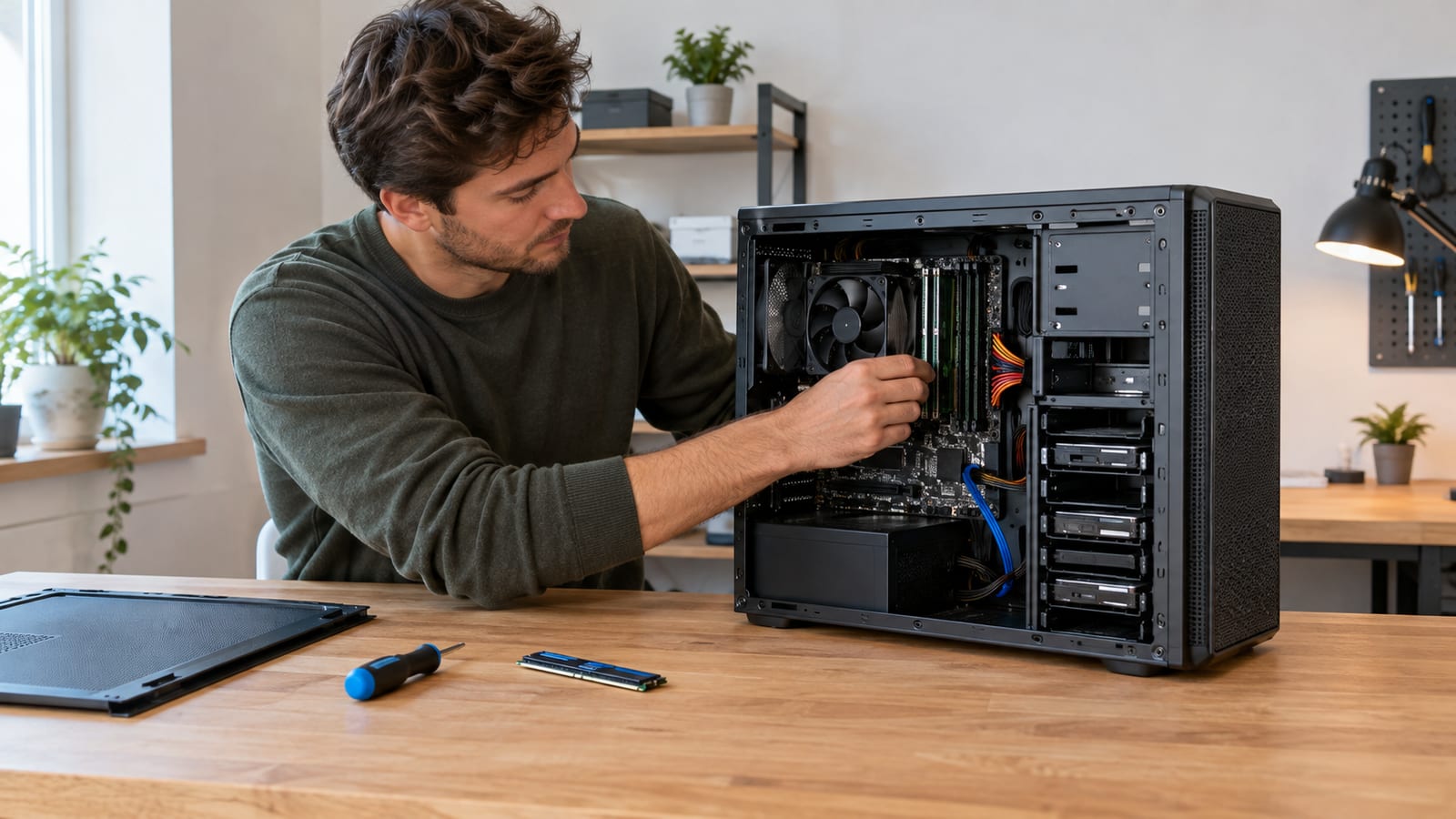

Home Server RAM: Size It for Your Workloads
Most home servers need far less RAM than forum threads claim. A light Ubuntu Server box runs on its recommended 1 GB or more, Home Assistant OS wants at least 2 GB, and a TrueNAS NAS asks for 8 GB because of ZFS caching. Full virtual machines are where you need noticeably more, because each one reserves its own memory. Add up what each service uses at peak, leave room for the kernel's cache, and measure the running box before you buy a single stick.
The vendor minimums are small, and most services idle in a fraction of what people buy. Full virtual machines and ZFS caching are what push a home server into needing real memory. A handful of containers rarely does.
How much RAM does a home server need?
Start from the operating system's floor, then add each service you plan to run. Here are the published figures for three common starting points:
| Software | Official RAM figure | What it actually tells you |
|---|---|---|
| Ubuntu Server | 1 GB or more, recommended | Enough to boot and run a few light daemons. Too little for a hypervisor. |
| Home Assistant OS | At least 2 GB, on a Raspberry Pi or in a VM | An appliance figure. It assumes nothing else shares the box. |
| TrueNAS CORE 13.0 | Installer recommends 8 GB | ZFS caching is why it asks for more. The OS itself is lighter. |
Read these as floors for one job each. None of them account for the second and third thing you'll install. Both the Ubuntu Server documentation and the Home Assistant installation guide get revised, so check the live pages before you plan around them.
Here is what happens on a real box. The base OS sits at its floor, every container adds its working set, every VM adds its whole allocation, and ZFS takes whatever is left. So a machine that serves files and runs Home Assistant in a container lives comfortably at the low end. The same hardware hosting three full VMs on a ZFS pool is a different machine entirely.
Virtual machines reserve memory, containers share it
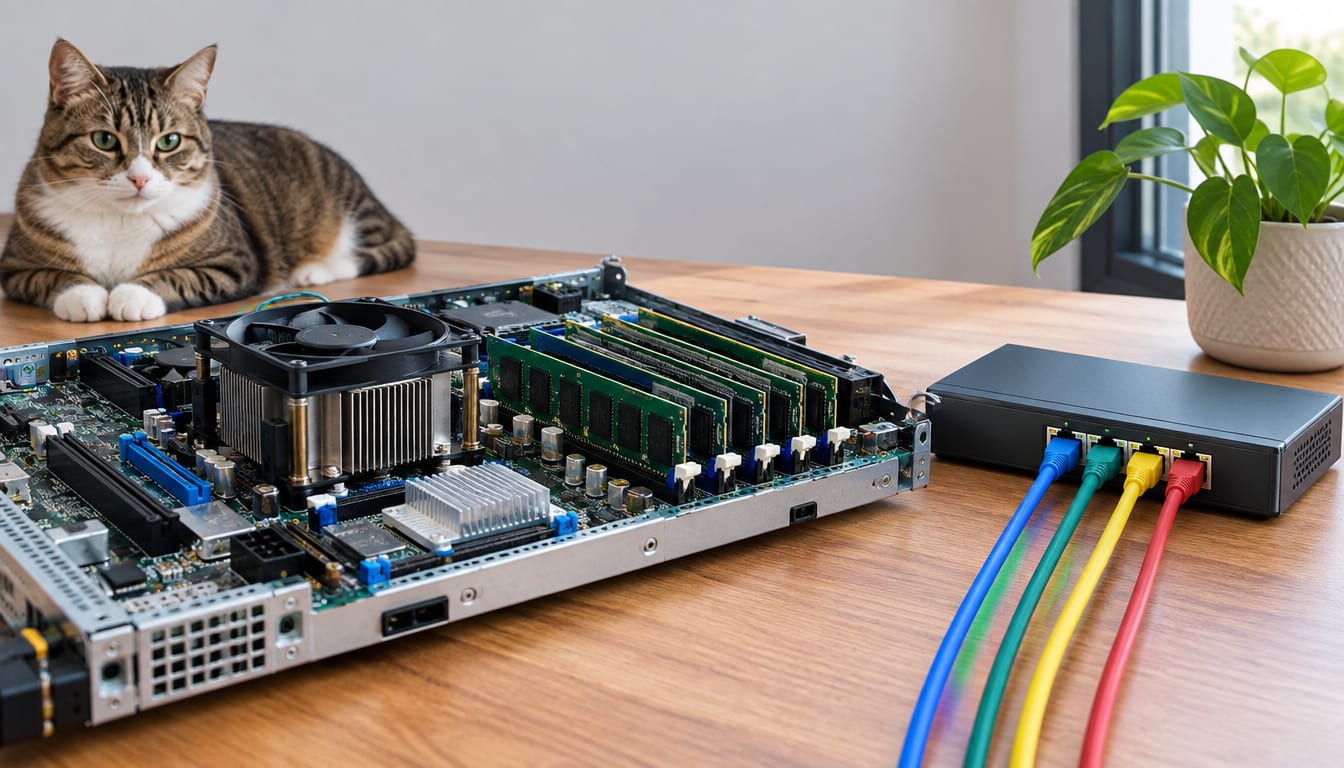
This is the biggest single decision for RAM sizing. A virtual machine gets its own kernel, its own page cache, and a fixed slab of host memory the moment it boots. Give a VM a generous allocation and the host loses that memory whether the guest touches it or not.
Containers, by contrast, share the host kernel and its page cache. Ten small containers cost roughly the sum of their processes, with no duplicated kernel overhead. As a result, a container-first home lab fits on hardware that a VM-first one would choke on.
Proxmox and plain KVM offer memory ballooning and KSM (kernel same-page merging) to claw some of that back. However, ballooning only works when the guest has its balloon driver loaded, and KSM burns CPU scanning pages. Neither one is a license to overcommit.
The gotcha nobody mentions: when the host runs out, the kernel's OOM killer picks the largest process. On a hypervisor, that's a QEMU process, which means one entire VM dies at once. If you're still choosing a hypervisor, the comparison of Debian Stable and Proxmox VE for a home lab covers what each setup expects from the host.
ZFS will fill your free memory, by design
Let it. ZFS keeps hot data in its ARC (adaptive replacement cache), and the ARC grows into memory nobody else is using. On Linux it shows up as used memory in free, because it lives outside the kernel's page cache. That's why a ZFS box looks full on day one.
The ARC shrinks when applications need memory, but it can lag behind a sudden spike. On a dedicated NAS that doesn't matter. On a box that also runs VMs, I cap it so the hypervisor never fights the cache:
arc_summary | head -40

echo <bytes> | sudo tee /sys/module/zfs/parameters/zfs_arc_max

echo "options zfs zfs_arc_max=<bytes>" | sudo tee /etc/modprobe.d/zfs.conf
sudo update-initramfs -u
Check the output of arc_summary for the hit ratio. A high hit rate under a modest cap means the cap is fine. A low one means your working set doesn't fit, and that is the real case for buying more RAM.
Ignore the old per-terabyte rule of thumb for ZFS memory. It mostly applies to deduplication, which you should leave off at home. With dedup off, pool size barely moves the needle.
Measure the box you already have
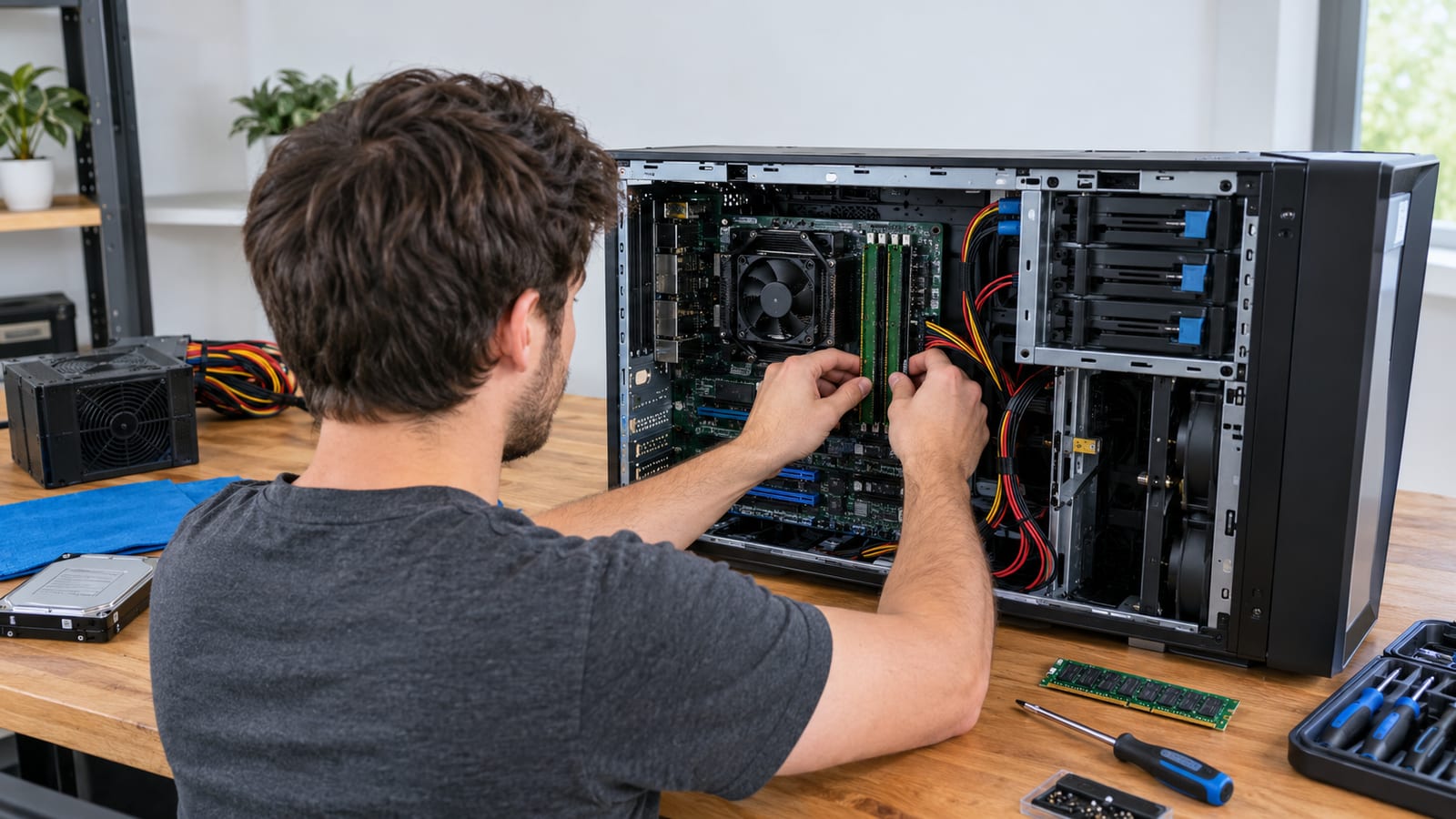
Run this first, before you open a shopping cart:
free -h
vmstat 1 10
cat /proc/pressure/memory
journalctl -k | grep -i "out of memory"
Each one answers a different question:
free -h: ignore thefreecolumn and readavailable, which counts cache the kernel can hand back. The kernel treats idle RAM as wasted RAM, so a healthy Linux box always looks nearly full.vmstat 1 10: watch thesiandsocolumns. Steady nonzero values mean pages are moving in and out of swap right now. That's the actual symptom of too little memory./proc/pressure/memory: this is PSI (pressure stall information). Ifsome avg10stays above zero, tasks are stalling while they wait for memory.journalctl -k: the kernel ring buffer logs every OOM kill and names the victim. If this comes back empty, the OOM killer hasn't fired.
Find out which service is the hog
Totals don't tell you who to blame. For that, use systemd-cgtop -m to sort every systemd unit by memory, or docker stats --no-stream for containers. Cgroup numbers beat summing ps output, because RSS counts shared libraries once per process and overstates the total.
Also, take readings at the heaviest moment you can reproduce: a backup running, a photo import, a media library scan. Idle numbers will talk you into a box that falls over on Sunday night.
Is an old gaming PC enough for a home server?
Usually yes, and RAM is rarely what holds it back. A retired gaming desktop tends to ship with more memory than a file server and a few containers will ever touch. The costs worth worrying about are idle power draw and a discrete GPU pulling watts around the clock.
Test the memory before you trust it with your files. Old DIMMs fail quietly, and a flaky stick on a file server corrupts data long before it crashes anything. Run a full pass with Memtest86 RAM diagnostics overnight before the box goes into service.
If you're still deciding between repurposing and buying new, the breakdown of when to build your own server covers the trade-offs beyond memory.
Where extra RAM pays for itself
Self-hosting is often about replacing cloud subscriptions, and some replacements are hungrier than others. These workloads change behaviour when you give them more memory:
- Photo libraries with machine learning. Face and object recognition in tools like Immich loads models into memory and keeps them there.
- Nextcloud backed by a real database. PostgreSQL and MariaDB use whatever cache you give them and answer faster for it.
- Several full VMs. Each one is a fixed reservation, so the count matters more than the apps inside.
- ZFS pools with repeated reads. A bigger ARC means fewer trips to disk.
Meanwhile, these barely care:
- Jellyfin transcoding. It's bound by CPU or GPU, so more RAM won't cure stutter.
- DNS filtering like Pi-hole. The footprint is tiny.
- Plain Samba or NFS shares. The page cache helps, but a modest amount covers it.
Keep swap, and watch whether it's moving
Run with some swap. A little swap lets the kernel push out pages nobody has touched in days, which frees real memory for cache. Without it, memory pressure goes straight to the OOM killer with no warning.
Confirm what you have with swapon --show, then go back to the si and so columns from vmstat. On low-memory boards like a Raspberry Pi, zram (compressed swap held in RAM) buys headroom without wearing out an SD card.
Swap used is not the warning sign. Swap moving is.
Upgrade on a budget, or skip it
Check what the board takes before buying anything:
sudo dmidecode -t memory | grep -E "Maximum Capacity|Size|Speed|Error Correction"
That tells you the board's ceiling, which slots are filled, the running speed, and whether ECC is active. Empty slots show up as "No Module Installed", which saves you opening the case.
Buy matched pairs so the board runs dual channel. Mixing kits from different vendors can drag every stick down to the slowest one, or fail memory training at boot. Either way, run a fresh memory test on the new sticks before trusting them.
Skip the upgrade if your pressure numbers sit at zero and swap isn't moving. Extra memory on that box only grows the cache. That's pleasant to look at in free and changes nothing you'll notice.
FAQ
Is ECC memory worth it for a home server?
If the box holds the only copy of your photos and the platform supports ECC, yes. ECC catches and fixes small memory errors before bad data reaches your disks. That matters most under ZFS, which computes checksums from whatever sits in memory, bad bits included. For a lab machine you rebuild every few weeks, the premium isn't worth it.
Does faster RAM matter for a home server?
Barely. Home server workloads wait on disks and the network far more than on memory bandwidth. If enabling an XMP profile causes random crashes, drop back to the board's default speed and keep the stability.
Can a Raspberry Pi work as a home server?
For light duty, yes: DNS filtering, Home Assistant, a small file share. Its memory is soldered to the board, so buy the size you'll need from the start. Boot from an SSD over USB if you can, since SD cards wear out under constant writes.
Can I add more RAM later without reinstalling?
Yes. Linux picks up new memory at boot with no configuration. Rerun free -h to confirm the kernel sees it. Then raise any VM allocations or ARC caps you set by hand, because those stay where you left them.
