

Linux on Surface Book: Install the Right Kernel First
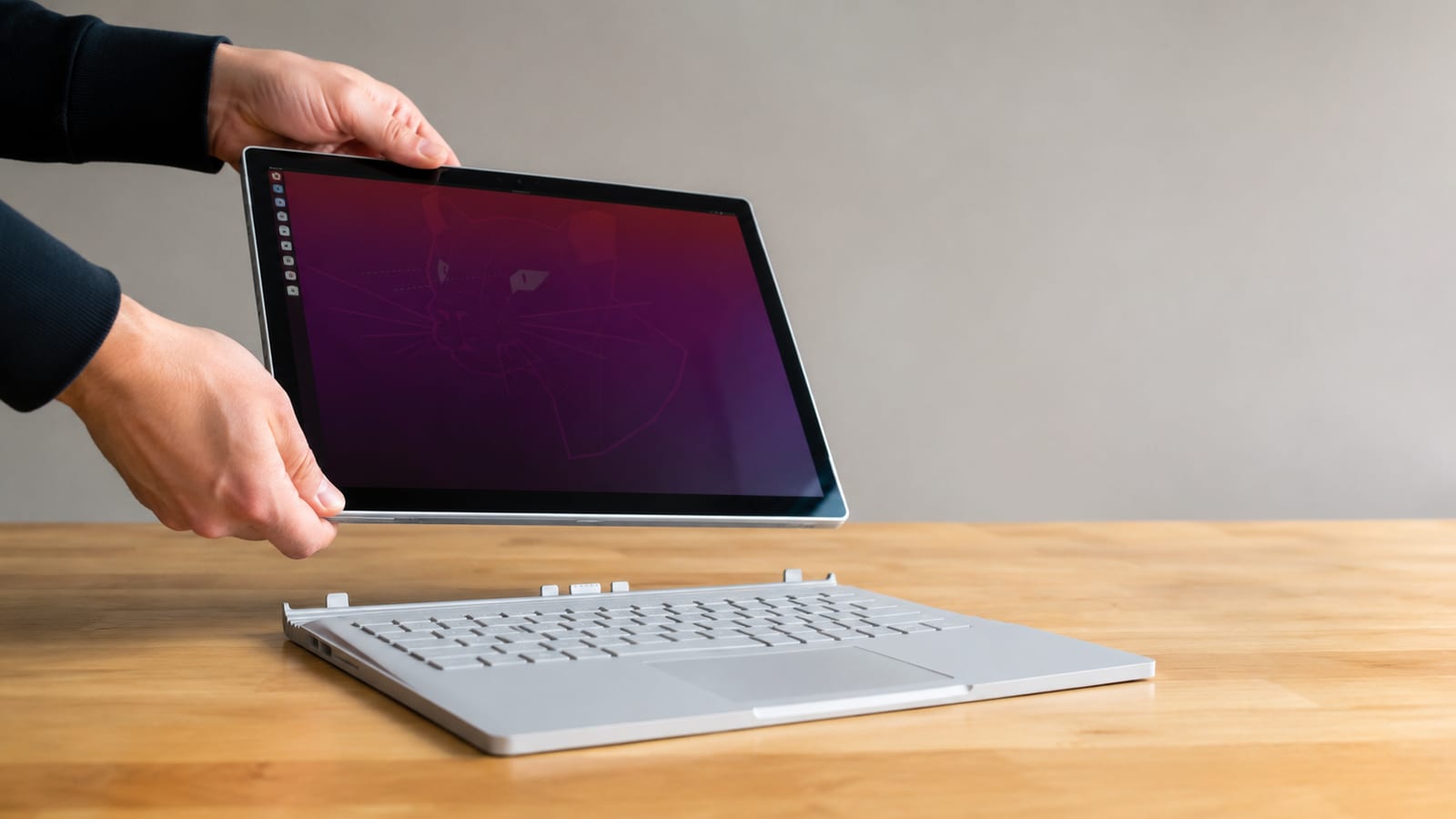
Linux runs well on a Surface Book, but only if you install the linux-surface kernel and firmware stack instead of trusting your distro's stock kernel. Vanilla kernels leave the pen, the detach mechanism, the cameras, and the keyboard firmware half-working, and no amount of Stack Overflow driver tweaking fixes that. The real fix is understanding what the surface kernel patches change and why. Get that stack in place and Linux on a Surface Book is a solid daily driver. Skip it and you own an expensive tablet that forgot how to be one.
Why move to Linux on a Surface Book
Most people land here because they want off Windows telemetry, not because they hate the hardware. That is a fair reason. What Linux cannot do is fix the parts of this machine that were designed around Windows firmware, so set expectations before you wipe the drive.
Linux gives you control over what phones home and what runs at boot. It does not magically teach the detachable hinge or the front camera to work under a kernel that has never heard of them. The hardware was built for one operating system, and the community patched the rest back in by hand. That work is real and it is good, but it is not complete.
So the honest framing is a trade. You gain privacy and a system you actually own. You give up a few hardware functions that may never be perfect. Decide which side of that you care more about before you commit, because reinstalling Windows later is its own bad afternoon.
Which kernel actually supports this hardware
Run uname -r first. If it does not have surface in the version string, you are on the wrong kernel and half your hardware is going to stay broken no matter what you do. The linux-surface project exists because upstream Linux still lacks working support for the Surface embedded controller, the pen digitizer, and the detach mechanism.
Here is what those patches change. The Surface Aggregator Module talks to the embedded controller that manages the keyboard, battery, thermal sensors, and the clipboard-detach latch. Stock kernels have no driver for it, so those subsystems just do not answer. The linux-surface patches add that driver plus the IPTS touch and pen stack.
To confirm the module loaded, check the kernel ring buffer:
dmesg | grep -i surface_aggregator
Clean lines about registering the controller mean the stack is alive. Errors or silence mean it is not, and that tells you where to look before you start blaming the pen. Do not assume a distro "just works" here. Verify from the source.
Which distro should you install
Pick Ubuntu 22.04 LTS if you want the machine to stay boring and working. It runs cleanly on the Surface Book 2 with the linux-surface repository added, and the long-term support cadence means kernel updates arrive tested rather than bleeding. For most people, that is the right answer.
Arch and Fedora-based setups get you newer patches faster, which matters if a fix you need just landed. The cost is that you own the breakage when a fast-moving kernel update collides with the surface patches. That is fine on a lab machine and annoying on the laptop you present from.
The real difference is not the distro logo. It is how kernel updates reach you and who catches a bad one first.
| Choice | Patch cadence | Who tests updates first |
|---|---|---|
| Ubuntu LTS + linux-surface repo | Slower, steadier | Ubuntu, then the surface maintainers |
| Arch/Fedora + linux-surface | Fast, close to upstream | You do |
If you want a broader comparison of how distros handle stability versus fresh packages, the rundown on picking a home lab distro covers that trade in more depth.
How do you get pen, touch, and detach working
Load the driver stack, then read logs before you touch a config. Two pieces matter: IPTS (Intel Precise Touch and Stylus) for the pen and touchscreen, and the surface-aggregator-module for the detach latch and keyboard. Both ship with the linux-surface kernel, so if uname -r looked right, they are probably present.
When the pen does nothing, watch the ring buffer while you tap the screen:
dmesg -w | grep -i ipts
If nothing scrolls, the touch controller never came up, and the problem is firmware or the module, not your pen. If lines appear but input never reaches applications, the driver is fine and your desktop input layer is the suspect.
For the detach mechanism, scope journalctl to the aggregator unit:
journalctl -b -k | grep -i aggregator
That shows what the controller reported this boot. A latch that will not release usually logs the reason there. Guessing at random xinput commands wastes an evening. The log already knows.
What still breaks and how do you diagnose it
Four things tend to misbehave: the front and rear cameras, Wi-Fi power saving, battery drain on idle, and suspend that will not resume. None of these are mysteries once you read the right log instead of copy-pasting a fix someone posted for different hardware.
Suspend is the classic one. If the machine sleeps but wakes to a black screen, check what happened around the resume:
journalctl -b -1 -p err --since "5 min ago"
The -b -1 reads the boot before this one, which is exactly what you want after a bad wake. Read the top error, not the whole trace.
For battery drain that makes no sense, Wi-Fi power management is the usual culprit. It flaps the radio to save power and burns more waking it back up. Confirm with iw dev and dmesg | grep -i iwlwifi before you disable anything, so you know you are turning off the actual cause and not guessing.
The cameras are the honest weak spot. IPTS bring-up came first, and camera support has lagged. If a working webcam is non-negotiable for your day, that is a real strike against this machine right now.
Can you build a real dev environment on it
Yes, and this is where the Surface Book earns its keep. The driver quirks live in the hardware layer. Above that, it is ordinary Linux, so .NET (dotnet), containers, language runtimes, and editors install exactly as they do on any other laptop. The half-finished camera does not touch your compiler.
Install the dotnet SDK from Microsoft's package feed, add your container runtime, and you have a working stack. Nothing about the surface patches interferes with userspace tooling. If your build runs on Linux anywhere, it runs here.
The one caveat is suspend reliability. A dev box that drops your session on a bad resume costs you more than a slow build. Get suspend stable first, using the log approach above, then trust the machine with long-running work.
Does Docker Desktop and SQL Server work here
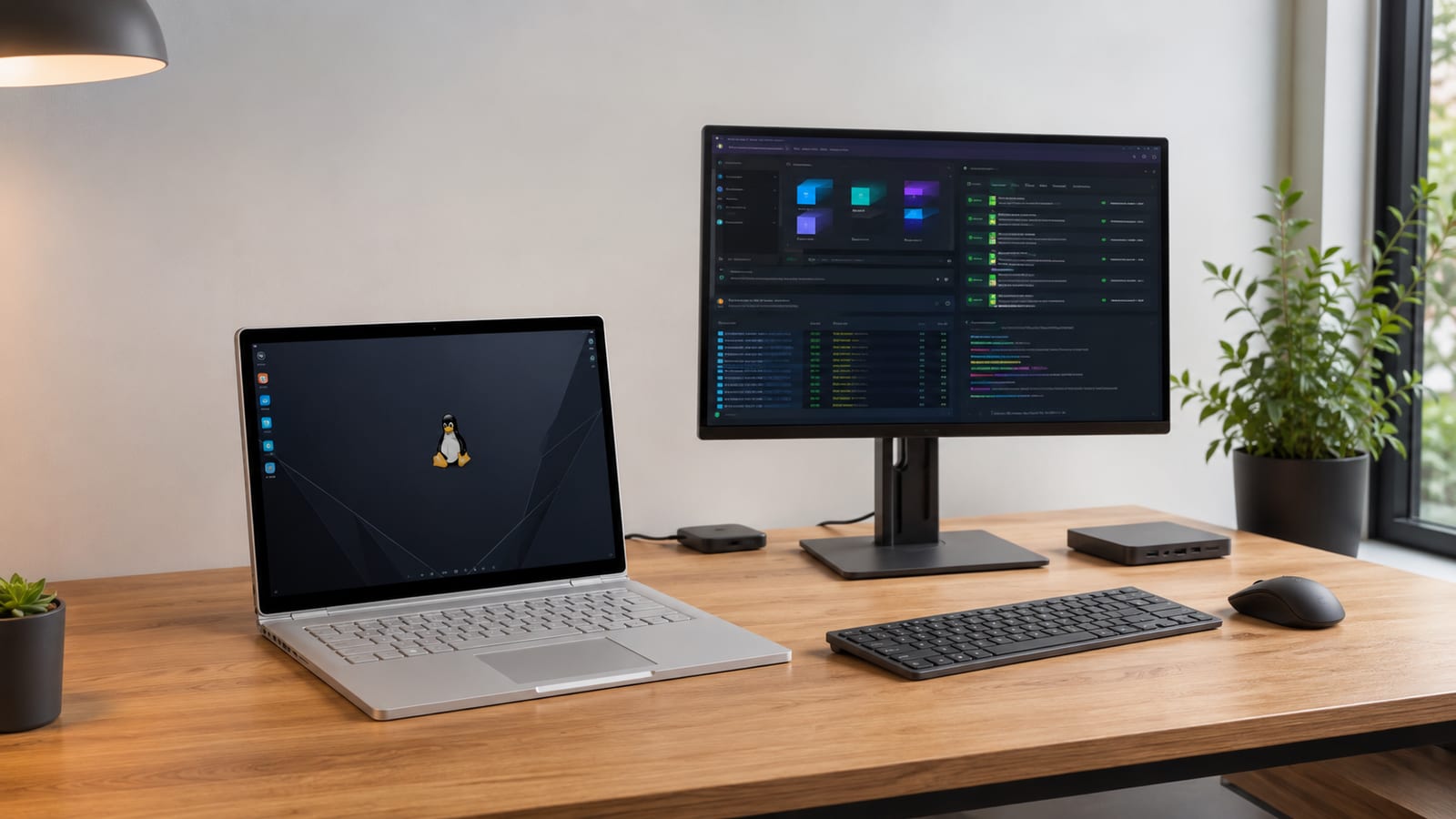
Run Docker Engine, not Docker Desktop. On Linux you install the engine directly and it is the real thing, native containers with no virtualization layer wrapped around them. Docker Desktop is a packaging product aimed at Windows and Mac, where it spins up a Linux VM to run containers at all. On Linux you already have the kernel it needs, so the desktop wrapper buys you a GUI and little else you cannot get from the engine plus the CLI.
SQL Server runs fine as a container. Microsoft ships an official SQL Server image, you pull it, run it, and connect. That is the supported path on Linux and it behaves. So the practical setup is Docker Engine plus the SQL Server container, and you skip Docker Desktop entirely without losing anything that matters for development.
If your workflow leans on a Docker Desktop-only feature like its Kubernetes toggle or the dashboard, replace it with the underlying tools rather than chasing a port that is not coming.
How do you handle OneDrive and Teams without Windows
Use the browser for both first, then add native clients only where the browser genuinely falls short. OneDrive has no official Linux desktop client, so your choices are the web interface or an unofficial sync tool. The community sync clients work, but you own the risk when the API changes under them, so keep a backup of anything you cannot afford to lose to a sync bug.
Teams is more forgiving. The web app covers chat, calls, and meetings well enough to daily-drive, and it does not fight the way an aging Electron build sometimes does. For file collaboration, the browser plus a well-behaved sync tool covers most days.
The realistic day-to-day is browser-first for Microsoft services, native tools only where they clearly earn their spot. That keeps you off fragile integrations that break on someone else's schedule.
Is daily-driving a Surface Book on Linux worth it
Do it if you value privacy and control more than a perfect camera, and you are comfortable reading logs when something breaks. With the linux-surface kernel, Ubuntu 22.04 LTS, and a little patience on suspend, this is a genuinely good Linux laptop. The pen and detach work, dev tooling is native, and the machine is yours.
Wait if you need every hardware function flawless on day one, or if reading dmesg sounds like a chore rather than a Tuesday. This is not a machine that hides its rough edges from you.
For the same trade on other convertible hardware, the Pixelbook Go and its Crostini versus native choice makes a useful contrast, and if you want to go deep on tablet input stacks, the Arch input-stack guide covers the pen and touch layer in detail.
FAQ
Will a distro upgrade wipe out the linux-surface kernel?
It can. A major release upgrade may pull you back onto a stock kernel if the surface repository is not carried forward. After any big upgrade, run uname -r and confirm surface is still in the string before you assume the pen survived.
Can I dual-boot Windows and Linux on a Surface Book?
You can, and it is the safe way to try this. Shrink the Windows partition, install Linux alongside it, and you keep a working fallback for the one task Linux still fumbles. Just take a full image first, because the firmware here is fussier than a normal PC about boot changes.
Does Secure Boot cause trouble with the surface kernel?
Sometimes. An unsigned custom kernel will not load under Secure Boot, so you either use signed packages or turn Secure Boot off in firmware. If the machine boots to a blank screen after installing the kernel, check that setting before you suspect the install.
Is the Surface Book 2 supported better than the original?
Support depth varies by generation, and the community tracks each model separately. Check the linux-surface project's per-device notes for your exact model rather than assuming your hardware matches a guide written for a different one.
How do I fully remove Wi-Fi power saving if it keeps draining the battery?
Confirm it is the cause first with iw dev and the driver log, then set the power-save option off in your network manager's config for that interface. Verify with iw dev wlan0 get power_save afterward, so you know the change actually took instead of hoping it did.
