

Stop Arch Linux Network Services From Fighting
Pick one network manager and give it the whole machine. For an Arch Linux networking setup, connect Ethernet and Wi-Fi with NetworkManager if the box is a laptop that moves between networks. Use systemd-networkd plus iwd if it's a server or a desktop that never leaves the desk. Most broken Arch networks have working drivers. The usual fault is two or three daemons fighting over the same interface.
Pick one manager and stop the others
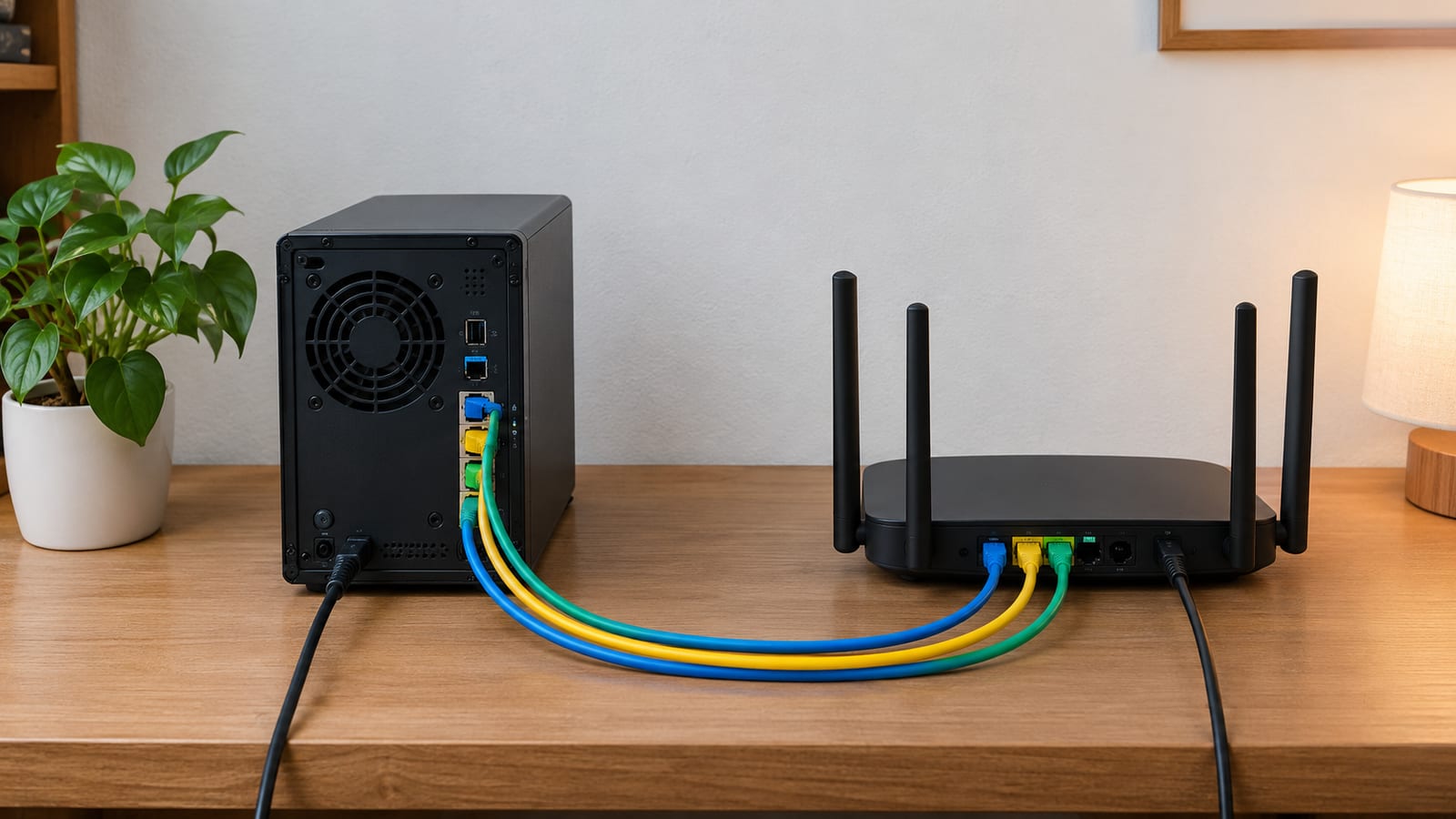
NetworkManager and systemd-networkd both want to own addresses, routes and DNS on every interface they see. Run both and they take turns. One gets a DHCP lease, the other flushes it, and your connection drops at random with nothing obvious in the logs. Add dhcpcd, which plenty of old install guides tell you to enable, and you have three owners for one cable.
| NetworkManager | systemd-networkd + iwd | |
|---|---|---|
| Best fit | Laptops, desktops with a GUI, roaming between Wi-Fi networks | Servers, VMs, home lab boxes, fixed desktops |
| Wi-Fi | Built in, uses wpa_supplicant by default | iwd handles Wi-Fi, networkd handles addressing |
| Config | Profiles via nmcli, nmtui or a desktop applet | Plain text files in /etc/systemd/network/ |
| DNS | Writes /etc/resolv.conf itself or feeds systemd-resolved | Feeds systemd-resolved |
| Weak spot | Opaque profiles, more moving parts | Manual config for every new Wi-Fi network |
Run this first to see who is enabled:
systemctl is-enabled NetworkManager systemd-networkd dhcpcd iwd wpa_supplicant
Every line that says enabled is a daemon that will try to configure your network at boot. Keep the set that matches your choice and disable the rest with systemctl disable --now <name>.
systemd-networkd ships with systemd, so it's always installed. That's fine. Installed and disabled is harmless. Also, NetworkManager starts wpa_supplicant over D-Bus when it needs it, so don't enable wpa_supplicant.service by hand.
How do you connect Ethernet and Wi-Fi in an Arch Linux networking setup?
Install one network manager before you leave the installer chroot, enable it, and reboot. Then confirm four things in order. The kernel sees the device, the link is up, the interface has an address and a default route, and names resolve. Every Arch networking failure lives in one of those four layers.
Here is the gotcha that catches most first installs. The live ISO runs iwd, systemd-networkd and systemd-resolved for you, so Wi-Fi works during installation. A pacstrap of the base system installs none of that configuration and no Wi-Fi daemon at all. You reboot into the new system and the network is gone. So install networkmanager or iwd inside the chroot, and enable it there.
The order I'd check things in after the first boot:
lspci -korlsusbto confirm a driver is bound to the card.ip -br linkto confirm the interface exists and has carrier.networkctl statusornmcli device statusto confirm an address and route.resolvectl query archlinux.orgto confirm DNS.
Skipping ahead is how you spend an hour editing DNS config on a machine with an unplugged cable.
Confirm the kernel sees the hardware
Start with the PCI bus, because the output tells you whether a driver claimed the card:
lspci -k | grep -A3 -iE 'ethernet|network'
lsusb
Look for the Kernel driver in use: line under your device. If it's there, the driver loaded and bound. If you only see Kernel modules: with no "in use" line, the module exists but never attached. If neither line shows up, the kernel has no driver for that chip.
Next, read the kernel ring buffer for complaints:
dmesg -T | grep -iE 'firmware|eth|wlan|iwl|r8169'
A line like failed to load ... firmware means the driver loaded and then had nothing to run on the card. On Arch, firmware lives in the separate linux-firmware package. A minimal install that skipped it leaves most Wi-Fi cards dead while Ethernet works fine. That sends people chasing the wrong problem.
Load a missing driver
Check whether the module is loaded, then load it by hand:
lsmod | grep r8169
sudo modprobe r8169
If modprobe says Module not found, compare uname -r against ls /usr/lib/modules. This is an Arch quirk worth knowing. Upgrade the kernel package without rebooting and the modules for the running kernel are deleted from disk. Nothing new can load until you reboot into the kernel that matches the files.
Realtek wired chips are the usual hardware complaint. The in-tree r8169 driver handles most of them. However, some chips drop the link or stall under load with it, and the r8168 package exists for those cases. Try the in-tree driver first, and switch only if dmesg shows link resets you can reproduce.
Read the interface name before you write config
Run ip -br link and copy the names it prints. Arch uses systemd's predictable interface names, so you get enp3s0 or wlp2s0 rather than eth0. The prefix tells you the type: en is Ethernet, wl is wireless. The rest encodes where the device sits on the bus, so the name stays stable across reboots.
The mistake I see most is config copied from an old guide that says eth0. That config matches nothing and fails quietly. USB Ethernet adapters often get a long enx name built from the MAC address. In addition, iwd recreates wireless interfaces by default. So you'll often see wlan0 on an iwd box even though the rest of the system uses predictable names.
If names shift on you, for example on a board where the PCI layout changes, match by hardware address instead. The systemd.network documentation covers MACAddress= and the other [Match] keys.
Check link and carrier before addresses
ip -br link
ethtool enp3s0
cat /sys/class/net/enp3s0/carrier
NO-CARRIER in the ip output means the interface is up but sees nothing on the wire. ethtool confirms it with Link detected: no. The carrier file gives you the same answer straight from the kernel. At that point, the problem is the cable, the switch port, or a negotiation failure. No amount of DHCP config will fix it.
On Wi-Fi, the equivalent check is the radio kill switch:
rfkill list
sudo rfkill unblock wifi
Soft blocked: yes is software and clears with rfkill unblock. Hard blocked: yes comes from a physical switch, a function key, or a firmware setting, and no command will clear it.
Ethernet and Wi-Fi with systemd-networkd and iwd
This is the stack I'd put on any machine that stays in one place. The config is plain text, it diffs cleanly, and you can read it a year later and know what it does. Enable the three services and point resolv.conf at the resolver:
sudo systemctl enable --now systemd-networkd systemd-resolved iwd
sudo ln -sf /run/systemd/resolve/stub-resolv.conf /etc/resolv.conf
Wired config
Create /etc/systemd/network/20-wired.network. For DHCP:
[Match]
Name=enp3s0

[Network]
DHCP=yes
For a static address on a server:
[Match]
Name=enp3s0

[Network]
Address=192.168.1.50/24
Gateway=192.168.1.1
DNS=192.168.1.1
Apply it and check the result:
sudo networkctl reload
networkctl status enp3s0
You want State: routable (configured). If it sits at configuring, DHCP isn't answering, so check the link layer again. If it says unmanaged, no .network file matched the interface name. That almost always means a typo or the eth0 problem from earlier.
Wi-Fi with iwd
Connect once with iwctl, and iwd stores the network under /var/lib/iwd/ for next time:
iwctl device list
iwctl station wlan0 scan
iwctl station wlan0 get-networks
iwctl station wlan0 connect "MyNetwork"
iwd handles authentication. Addressing still needs an owner, so add /etc/systemd/network/25-wireless.network:
[Match]
Name=wlan0

[Network]
DHCP=yes
iwd can also do DHCP itself with EnableNetworkConfiguration=true in /etc/iwd/main.conf. Pick one. If both iwd and networkd hand out addresses on the same interface, you're back to two owners for one interface.
Ethernet and Wi-Fi with NetworkManager
NetworkManager earns its place on laptops. It reconnects when you change networks, it handles captive portals, and your desktop applet talks to it. Install and enable it:
sudo pacman -S networkmanager
sudo systemctl enable --now NetworkManager
nmcli device status
nmcli device status lists every interface and its state. Ethernet with DHCP connects on its own as Wired connection 1. For Wi-Fi:
nmcli device wifi list
nmcli device wifi connect "MyNetwork" --ask
For a static wired address, modify the profile rather than writing files by hand:
nmcli connection modify "Wired connection 1" ipv4.method manual \
 ipv4.addresses 192.168.1.50/24 ipv4.gateway 192.168.1.1 ipv4.dns 192.168.1.1
nmcli connection up "Wired connection 1"
Profiles live in /etc/NetworkManager/system-connections/. When something fails, journalctl -u NetworkManager -b shows the current boot's log, and it's usually specific about the reason. A device listed as unmanaged means another daemon claimed it, or a config file told NetworkManager to leave it alone. If you'd rather not type flags, nmtui gives you a menu in the terminal.
Why does DNS fail when ping works?
If ping 1.1.1.1 answers and ping archlinux.org doesn't, the network is fine and the resolver is broken. Check what resolv.conf actually is:
ls -l /etc/resolv.conf
resolvectl status
resolvectl query archlinux.org
There are two common faults. The first is a stale static /etc/resolv.conf left over from the installer, pointing at a server you can't reach. The second is a symlink to the systemd-resolved stub while systemd-resolved isn't running. In that case resolv.conf points at the local stub address and nothing listens there.
NetworkManager behaves differently depending on what it finds. With systemd-resolved running, it pushes DNS servers to resolved. Without it, NetworkManager writes resolv.conf directly. Problems start when you half-configure both, so pick one approach and confirm with resolvectl status that each link shows the DNS server you expect.
Test the gateway, then the internet
ip route
ping -c3 192.168.1.1
ping -c3 1.1.1.1
ping -c3 archlinux.org
ip route must show a default via line. No default route means you can reach the local subnet and nothing past it. Each ping tests one more layer: the gateway, the outside network by address, then DNS on top. Wherever it stops, that's your layer. I go through this bottom-up method in more depth in how I troubleshoot network problems on Linux.
Running Ethernet and Wi-Fi at the same time
Both interfaces get a DHCP lease, both install a default route, and the kernel picks the one with the lower metric. If the metrics tie or land the wrong way round, traffic goes out the slow link. Set them explicitly. In systemd-networkd, add this to each .network file with a different value:
[DHCPv4]
RouteMetric=100
Give the wired file the lower number. In NetworkManager, the same knob is ipv4.route-metric on each connection profile. Check the result with ip route and confirm the wired default route sits on top.
There's a second trap on networkd boxes. systemd-networkd-wait-online.service waits for every managed interface by default. If Wi-Fi is out of range, boot stalls until the wait times out. Add RequiredForOnline=no under [Link] in the wireless .network file so only the wired link gates boot.
If the wired port is going to carry VMs or containers, it'll end up as a bridge member, and the addressing moves from the port to the bridge. That's its own job with its own failure modes. See building a Linux bridge safely before you move a remote box's only uplink into one.
MTU and the tunnel gotcha
Standard Ethernet carries an MTU of 1500 bytes, and ip link show enp3s0 prints the value on every interface. Leave it alone on a plain LAN. The trouble starts with tunnels and some ISP links, which add headers and shrink the space left for your payload.
The symptoms are odd enough to send you down the wrong path. Small pages load, but large downloads stall. SSH connects, then freezes the moment a command prints a lot of output. Test path MTU with the don't-fragment flag:
ping -M do -s <payload-size> 192.168.1.1
Message too long or Frag needed tells you the size is over the limit. Lower the payload until pings pass, then set the interface MTU to match. Use MTUBytes= under [Link] in networkd, or ethernet.mtu on a NetworkManager profile. If the tunnel is WireGuard, set the MTU on the tunnel interface itself, which setting up a WireGuard server walks through. The Arch Wiki network configuration page is the reference for the rest of the Arch-specific details.
FAQ
Should I use netctl on a new install?
No. netctl is Arch's own older profile tool and still works, but almost all current documentation and support assumes NetworkManager or systemd-networkd. Starting fresh on netctl means fewer people can help when it breaks.
How do I switch managers over SSH without locking myself out?
Do it at a physical or serial console if you can. If you can't, write the new config first, then disable the old service and enable the new one in a single command chain. Before you run it, schedule a rollback with systemd-run --on-active that re-enables the old manager. Cancel the rollback once you've reconnected.
How do I join a hidden Wi-Fi network?
With iwd, use iwctl station wlan0 connect-hidden "MyNetwork". With NetworkManager, add hidden yes to nmcli device wifi connect. Hiding an SSID gives you no real security, since clients announce the name when they probe for it.
Is dhcpcd on its own a reasonable choice?
For a single wired interface with DHCP and nothing else, yes. It's small and does one job. It stops being reasonable once you add Wi-Fi roaming, static routes on several interfaces, or a resolver setup. At that point you end up rebuilding pieces the other two managers already handle.
