
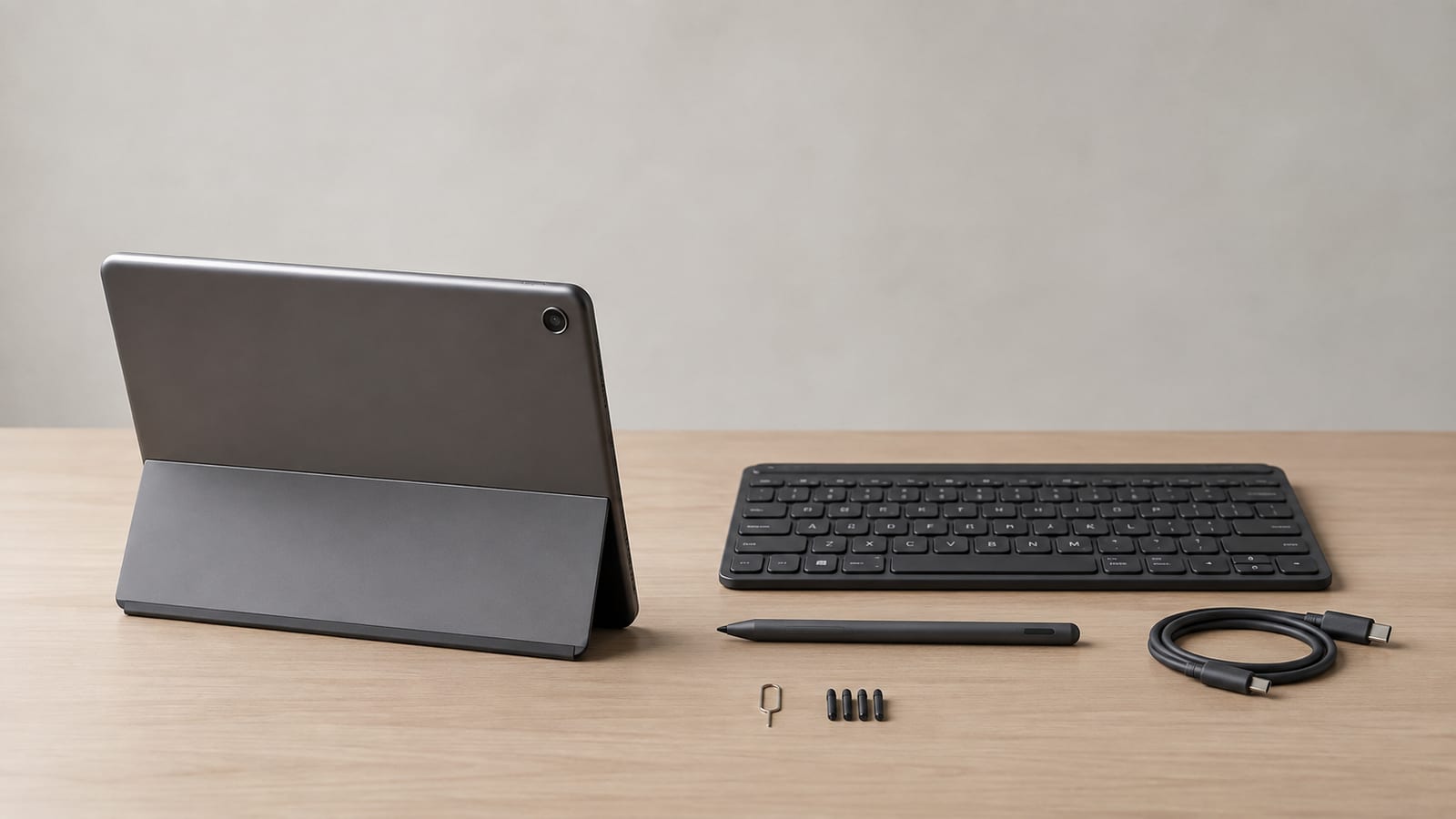

How to Assess an Archos Tablet for Arch Linux
Arch Linux can make a good tablet OS, but an Archos Linux tablet is a hardware porting job first. Archos and Arch Linux are unrelated. Before wiping Android, identify the processor, bootloader, touchscreen controller, storage, and wireless chips. If the kernel can’t drive those parts, no desktop setting will rescue the device.
Last updated: 2026-08-21
Can Arch Linux run well on a tablet PC?
Arch Linux runs well on a tablet PC when the hardware already works with the mainline Linux kernel. Look for working graphics, internal storage, Wi-Fi, touch, sound, and suspend. A stylus and orientation sensor come after those basics.
An x86 tablet with standard Unified Extensible Firmware Interface, or UEFI, is usually the safer target. You can boot ordinary Arch installation media and use familiar kernel packages. ARM tablets are different because each board may need its own bootloader, device tree, kernel patches, and firmware files.
Check these before you install:
- The firmware can boot external media.
- The internal storage appears as a normal block device.
- Linux has a driver for the graphics processor.
- Touch and pen devices appear under
/dev/input. - Wireless firmware is available.
- You have a recovery image and a tested way to load it.
Do not treat “Linux compatible” as proof that every tablet feature works. Vendors often mean the processor boots Linux. That says nothing about cameras, suspend, screen rotation, or the touchscreen hiding behind a proprietary firmware interface.
An Archos tablet needs model-specific kernel support
You can build an Archos Linux tablet only if the exact Archos model has a usable boot path and kernel support. The name on the case tells you almost nothing. Archos sold different processors, touch controllers, wireless chips, and bootloaders under similar product families.
Start by finding the model identifier in Android settings, recovery mode, or the label on the device. Then identify its system-on-chip and check whether the bootloader can load an unsigned kernel. A locked Android boot chain ends the project before Arch enters the picture.
The hard requirements are plain:
- A way to access or replace the bootloader
- A Linux kernel that supports the system-on-chip
- A correct device tree describing the hardware
- Storage and display drivers that work before userspace starts
- Firmware for Wi-Fi, Bluetooth, touch, and other embedded controllers
- A recovery path that does not depend on the installed operating system
If those pieces do not exist, keep Android on the device. Running Linux applications through a container or remote shell is less satisfying, but it is better than turning usable hardware into a black screen.
An Archos Linux tablet with community kernel support can be a decent lab machine. Without that support, it is a kernel bring-up project, not an Arch installation.
Install Arch without losing the recovery path
Do not repartition the tablet until you can boot external media twice and still reach the original recovery system. A recovery menu you have never restored from is not a recovery plan. It is a hopeful button.
What must you prove before repartitioning?
For a standard x86 tablet, follow the official Arch Linux installation guide and keep the first install small.
- Boot the installer in the tablet’s native firmware mode.
Confirm whether UEFI variables are present:
ls /sys/firmware/efi/efivars
If the directory exists and contains entries, the installer booted through UEFI. If not, stop and check the firmware settings before installing a bootloader.
- Record the existing storage layout.
lsblk -f
blkid
efibootmgr -v
lsblk shows disks, partitions, filesystems, and mount points. blkid records filesystem identifiers. efibootmgr shows the boot entries the firmware currently knows about.
- Back up data and vendor recovery partitions.
A partition table backup is not a backup of the files inside those partitions. Copy anything you need to separate storage, including firmware files that may not exist in a public package.
- Create the smallest useful Linux layout.
Keep the existing EFI system partition when dual booting. Do not format it because a generic guide told you to. Mount it in the location expected by your chosen bootloader.
- Install a recoverable base system.
pacstrap -K /mnt base linux linux-firmware networkmanager sudo
genfstab -U /mnt >> /mnt/etc/fstab
arch-chroot /mnt
pacstrap installs the base system and kernel. genfstab records mounts by filesystem identifier. arch-chroot puts you inside the installed system so you can configure it.
- Enable networking before the first reboot.
systemctl enable NetworkManager
That gives the installed system a network service at boot. However, it cannot fix a missing wireless driver or firmware file.
- Install and verify the bootloader.
Read its output. A command returning success does not prove the firmware created or accepted a boot entry. Check again with efibootmgr -v before rebooting.
ARM installation is board-specific. Do not write an x86 image directly onto an Android tablet and expect its boot firmware to understand it. You need the correct kernel, device tree, boot image format, and partition layout for that exact board.
Identify tablet hardware before installing drivers
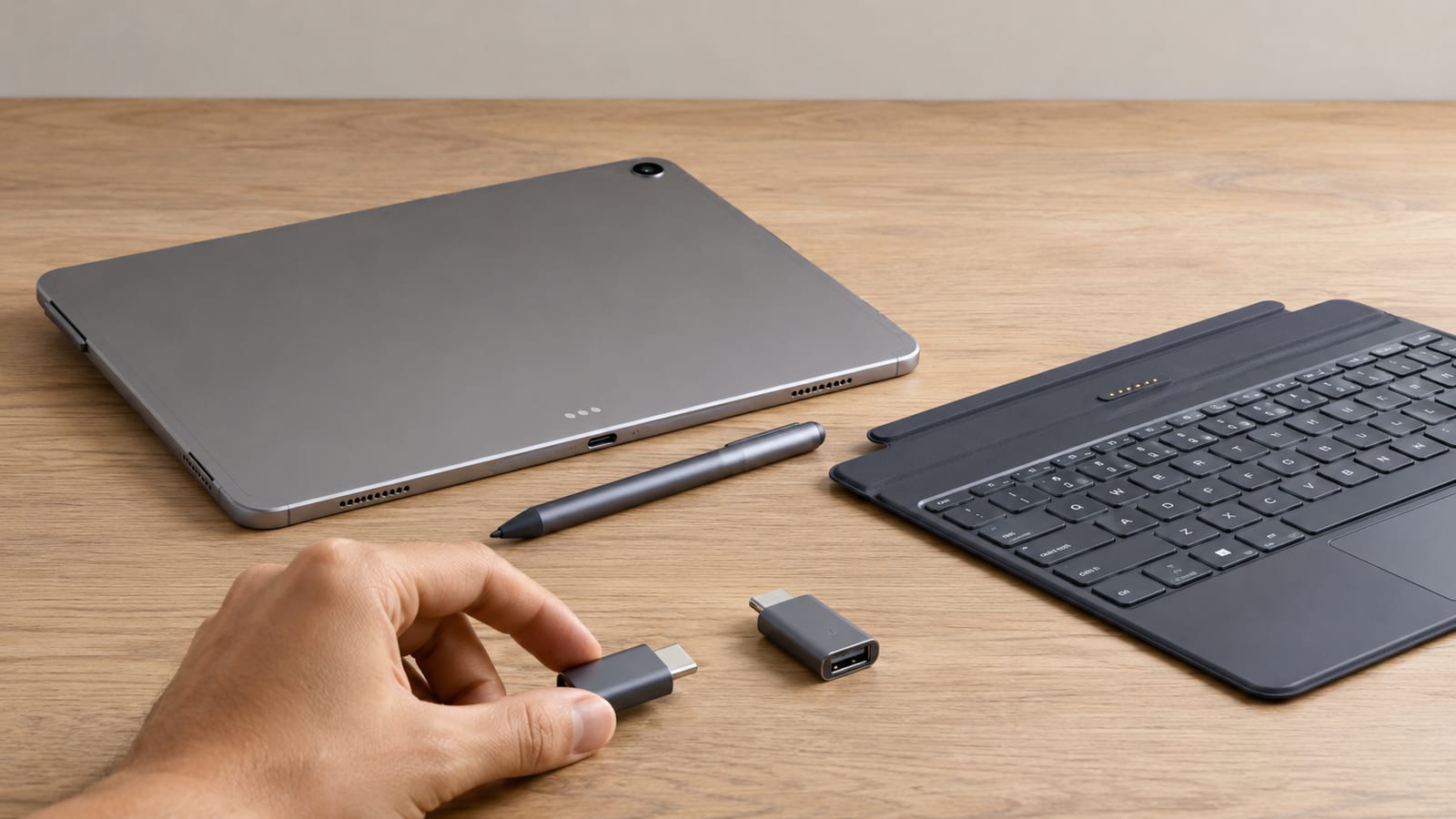
Run discovery commands before installing a pile of input packages. The kernel may already have the right driver, or it may be failing during device probing. Extra userspace packages do not repair either case.
Start with the buses and bound drivers:
lspci -nnk
lsusb
lspci -nnk shows Peripheral Component Interconnect devices, their identifiers, and the kernel drivers attached to them. lsusb does the same basic job for USB devices. Embedded touch controllers may instead sit on I2C or SPI buses, so their evidence usually appears in the kernel log.
Read the current boot log:
dmesg -T | grep -iE 'input|hid|i2c|spi|touch|pen|wacom|sensor|firmware'
journalctl -b -p warning
dmesg searches the kernel ring buffer for input probes and firmware failures. journalctl shows warnings from the current boot, including failures reported after early kernel startup.
Now inspect the input layer:
libinput list-devices
libinput debug-events --show-keycodes
The first command lists devices that libinput understands. The second prints live touch, pen, key, and switch events. If no event arrives, stop editing desktop settings and move down to the driver.
For a specific event node, run:
udevadm info --query=all --name=/dev/input/eventX
Replace eventX with the real node. The output gives you the device name, hardware identifiers, and udev properties used for matching rules. How Linux maps hardware to kernel drivers covers the same chain in more detail.
Tablet input and orientation need separate checks
The kernel has to produce usable events before the desktop can handle them. Test the pen, virtual keyboard, rotation sensor, and hinge switch at their own layer instead of changing five desktop settings and guessing which one mattered.
Pen and Wacom support
Prove the pen emits events before tuning pressure or buttons. Run:
libinput debug-events
Move the pen near the screen, touch down, vary pressure, and press its buttons. The output should distinguish proximity, motion, pressure, tip contact, and button events. Missing pressure at this layer is a kernel or device-description problem.
For a Wacom-compatible device, install the userspace Wacom database and inspect what it knows:
libwacom-list-local-devices
If the device is listed correctly, the desktop can use its declared capabilities. If it is missing, collect the vendor identifier, product identifier, device name, and event capabilities before writing a local definition.
On Wayland, let the compositor use libinput. Do not install an Xorg Wacom driver and expect it to control a native Wayland session. On Xorg, the Wacom driver may expose extra button and pressure controls, but only one driver should claim the pen.
Check an Xorg session with:
grep -iE 'wacom|libinput|tablet|stylus' /var/log/Xorg.0.log
If both drivers attach to the same event node, fix the matching rules under /etc/X11/xorg.conf.d. A jumping cursor can be a double-bound pen, not bad hardware.
Use evtest when a button or eraser still fails:
sudo evtest /dev/input/eventX
That tells you what the kernel actually sends. If the event is present there but absent in the application, the failure sits higher in the stack.
On-screen keyboard behavior
Choose the keyboard that matches the desktop session. GNOME’s built-in keyboard is the least troublesome choice on GNOME. KDE Plasma works with Maliit when its input-method integration is configured. Minimal Wayland compositors need a keyboard that supports the compositor’s text-input protocol.
The keyboard appearing on screen proves only that it can draw a window. It must also receive focus and send text through the protocol used by the application. Native Wayland applications, Xwayland applications, lock screens, and password prompts may take different paths.
Check these when the keyboard appears but cannot type:
- The session is actually Wayland or Xorg, as expected.
- The compositor supports the keyboard’s input-method protocol.
- The application exposes a text field through the expected protocol.
- Accessibility services are running when the keyboard depends on them.
- Tablet mode or touch input is not being ignored by the desktop.
- The keyboard is allowed on the lock screen.
Do not set the keyboard to launch from every touch event. That produces a keyboard over terminals, drawing applications, and empty desktop space. Let the compositor or desktop open it when a text field gains focus.
For emergency recovery, keep a small USB keyboard available. Debugging a broken virtual keyboard with the same broken virtual keyboard gets old quickly.
Screen rotation and touch mapping
Rotate the output and map input to that output. If you change only the picture, touch coordinates remain in the old orientation. The screen looks correct while every tap lands somewhere else.
First get the output and input names:
swaymsg -t get_outputs
swaymsg -t get_inputs
On Sway, rotate the display and bind the touchscreen to it:
swaymsg output eDP-1 transform 90
swaymsg input type:touch map_to_output eDP-1
Replace eDP-1 with the internal panel name shown by the first command. Mapping by input type is convenient when there is only one touchscreen. Use the full input identifier if a dock or external touch display adds another device.
GNOME and KDE usually handle input mapping with output rotation. However, verify it rather than assuming. Draw a line along each screen edge and tap all corners after every orientation change.
On Xorg, display rotation and the input coordinate transformation are separate settings. Do not paste a coordinate matrix from another tablet. The correct matrix depends on orientation and device mapping, so inspect the current output with xrandr and input properties with xinput list-props first.
Automatic orientation detection
Run monitor-sensor before configuring automatic rotation:
monitor-sensor
Rotate the tablet and watch the orientation values. If they change, the accelerometer, Industrial I/O driver, and sensor proxy are working. Your remaining problem is desktop integration.
If the values do not change, read the service and kernel logs:
systemctl status iio-sensor-proxy
journalctl -b -u iio-sensor-proxy
dmesg -T | grep -iE 'iio|accel|sensor'
The status output shows whether the service started. The journal shows D-Bus and permission failures. The kernel log tells you whether an accelerometer driver bound or failed while probing.
GNOME and KDE can consume orientation data without a custom script. With Sway or another small compositor, use the sensor output to call the compositor’s rotation command. Apply the matching input mapping in the same code path.
Do not watch a guessed file under /sys unless you are debugging the driver itself. Sensor paths vary between devices and kernel versions. The service exists to hide that churn, for once a Linux abstraction is doing you a favor.
Tablet mode events
Trace the hinge or keyboard event first. Convertibles often report tablet state as a switch event through the Linux input subsystem, but some firmware reports nothing useful.
Run:
libinput debug-events --show-keycodes
Fold or detach the keyboard while watching the output. If nothing appears, use evtest against likely input nodes and look for a switch event. That tells you whether the state reaches userspace at all.
When the event works, tablet mode should change a small, deliberate set of settings:
- Enable the on-screen keyboard.
- Ignore the built-in keyboard and touchpad when folded.
- Increase touch-friendly interface spacing.
- Adjust idle and suspend policy.
- Change window layout if the desktop supports it.
- Keep external keyboards and pointing devices active.
Do not disable every keyboard device through a broad udev rule. That will catch a USB keyboard too, usually while you are trying to repair the rule. Match the internal device by its hardware identifiers.
If the firmware emits the wrong switch state, fix it with a precise hardware database rule or kernel quirk. First record the raw event, the device identifiers, and the expected state. A rule without that evidence will break on the next similar device.
Choose the desktop by how you use the tablet
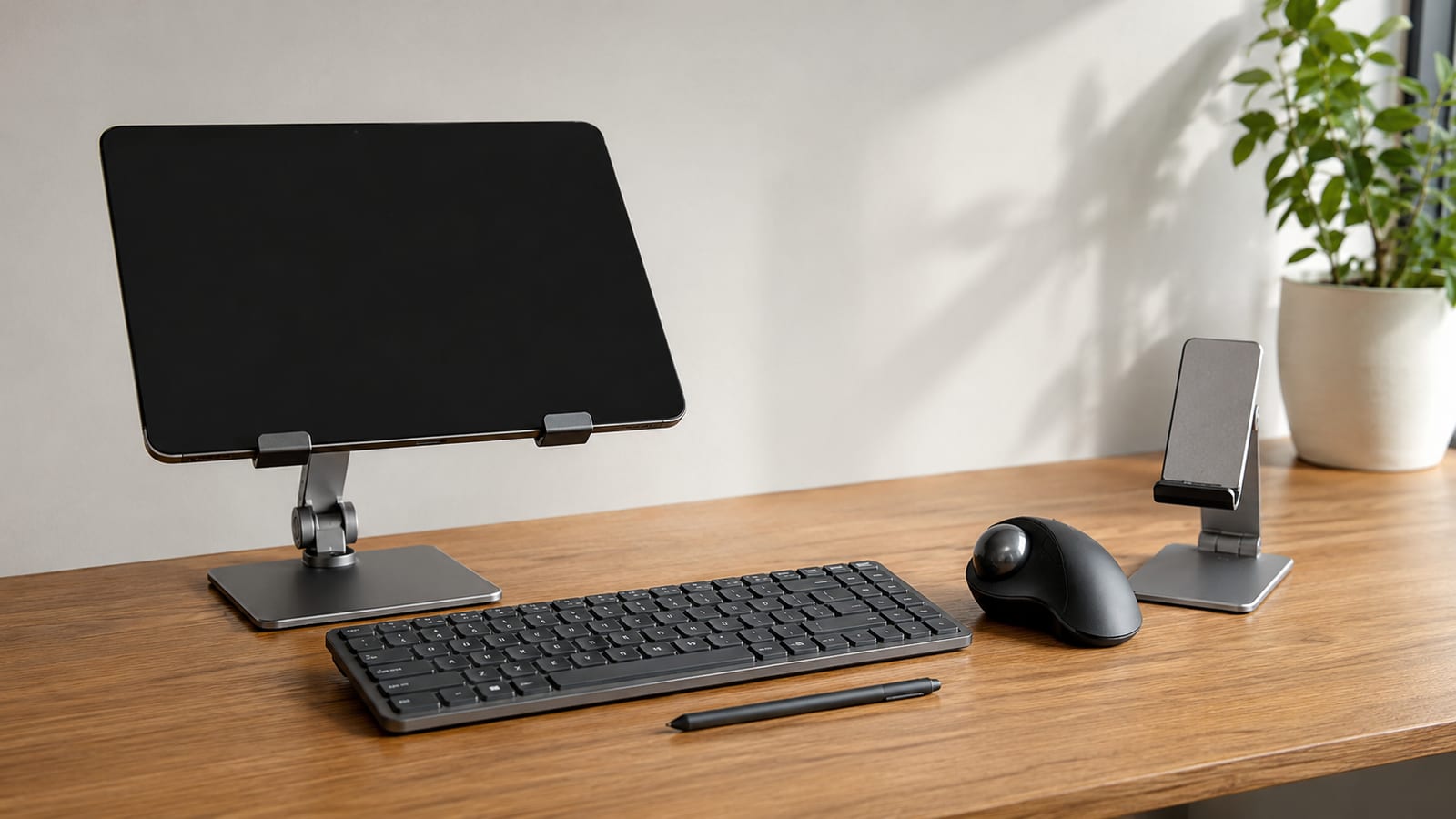
Use GNOME unless you have a reason not to. It has the most coherent touch workflow, built-in gestures, automatic rotation support, and an integrated on-screen keyboard. Its large interface elements are a feature on a tablet, even if they feel wasteful on a desktop monitor.
| Session | My judgment | Main weakness |
|---|---|---|
| GNOME on Wayland | Best default for touch-only use | Less control over interface layout |
| KDE Plasma on Wayland | Best if you need deeper configuration | More settings can mean more mismatched parts |
| Sway | Good for a keyboard-heavy convertible | Rotation and keyboard integration need scripts |
| Xfce on Xorg | Fine for older hardware with a keyboard | Touch navigation and automatic rotation feel bolted on |
| Small window manager | Keep it for experiments | You must build the tablet behavior yourself |
KDE Plasma is the better choice when the tablet spends much of its time docked. It gives you more control over panels, input devices, and desktop behavior. However, test the virtual keyboard and lock screen before committing to it.
Sway works well when you want reproducible configuration from files. Still, it is not a touch desktop out of the box. You will own the sensor script, input mapping, keyboard invocation, and tablet-mode bindings.
Xorg remains useful for specialist Wacom controls and older graphics hardware. For a general Arch tablet, Wayland is the cleaner path because modern touch gestures and input-method protocols are built around it.
Troubleshoot the lowest failing layer
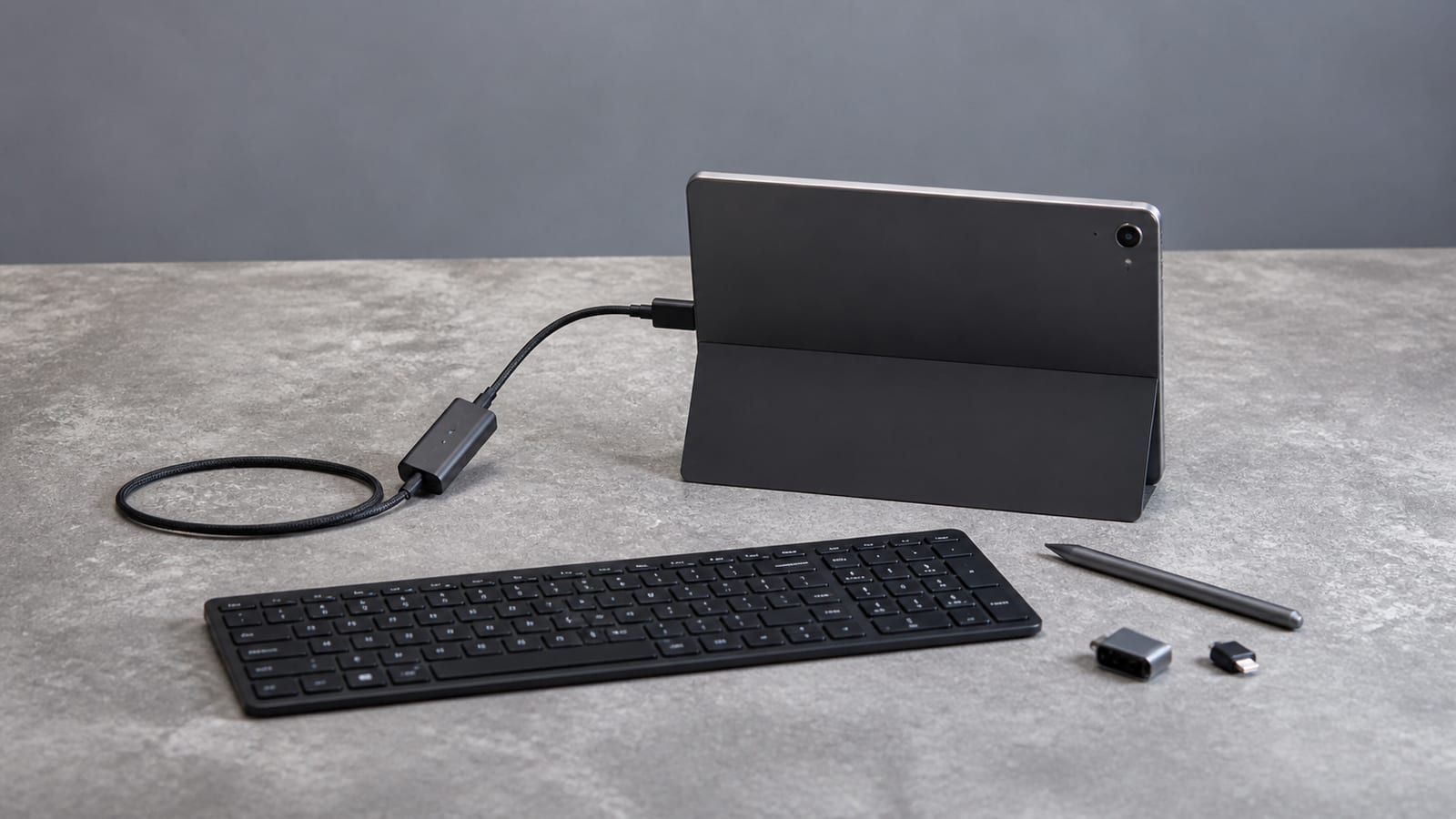
Start at the lowest layer that can explain the symptom. Do not change desktop settings until the kernel and libinput have proved they see the device.
Use this order:
- Read the kernel ring buffer.
dmesg -T | grep -iE 'error|failed|firmware|input|hid|i2c|spi|drm'
This catches driver probe failures, missing firmware, graphics errors, and bus timeouts.
- Read the current boot journal.
journalctl -b -p warning
That shows warnings from system services and the desktop session. Add -u with a systemd unit name when one service is the suspect.
- Prove the event exists.
libinput debug-events
If touch, pen, or switch events appear here, the kernel and libinput path works. Move up to the compositor.
- Inspect udev classification.
udevadm info --query=all --name=/dev/input/eventX
Check whether the device is marked as a touchscreen, tablet, keyboard, or switch. A wrong property can send a working device down the wrong userspace path.
- Trace the failing program.
strace -f -e trace=openat,ioctl program-name
openat shows which device and configuration files the program tries to open. ioctl shows its direct device control calls. Permission failures and missing paths stop being guesses.
- Read the driver source or documentation.
Search using the hardware identifier and bound module name, not the tablet’s marketing name. If the driver contains no match for the device, another compositor setting will not add one.
Change one layer at a time and reproduce the same action after each change. Rebooting after a pile of edits tells you only that something changed. It does not tell you what fixed the problem.
Arch is a good tablet platform only on supported hardware
Arch is a good open-source Linux tablet platform for supported hardware and the wrong choice for a sealed appliance. You get current kernel work, transparent configuration, and direct access to logs. You also become responsible for keeping the boot, graphics, input, and power stack working together.
The operating system can be open while parts of the device remain closed. Wi-Fi firmware, graphics firmware, sensor controllers, and the bootloader may still depend on vendor blobs. Check that boundary before making privacy or repairability claims.
For an x86 convertible with mainline support, I would use Arch without much hesitation. For an undocumented ARM tablet, I would first demand a working bootloader, device tree, display driver, storage driver, and recovery path.
That is also the honest verdict on an Archos Linux tablet. Keep it as a porting project if the device has community kernel support. Skip the native install if basic hardware still depends on an abandoned vendor kernel.
FAQ
Can I keep Android and Arch Linux on the same tablet?
Sometimes, but the bootloader and partition layout must support it. Do not resize Android partitions until you have copied their contents and confirmed how recovery locates them. On many ARM tablets, boot image handling is harder than the Linux filesystem itself.
Will the tablet cameras work under Arch Linux?
Do not assume they will. Tablet cameras often depend on board-specific sensor drivers, media-controller routes, calibration data, and proprietary image processing. Check dmesg, media devices under /dev, and the exact sensor model before promising camera support.
How should I handle Arch updates on a tablet?
Read package notices before updating the kernel, bootloader, graphics stack, or compositor. Keep a known bootable kernel and installation media nearby. If an update breaks input, compare the journal and loaded modules before rolling back random packages.
Can I install Arch without a physical keyboard?
You can, but I would not plan the installation around touch alone. The installer and firmware may not expose a usable virtual keyboard. Use a USB keyboard through a compatible adapter or dock, then configure touch after the installed system boots.
Is a Linux virtual machine better than replacing the tablet OS?
Yes, when the bootloader is locked or the hardware lacks mainline kernel support. A virtual machine or remote Linux session gives you Linux tools without risking display, storage, or recovery support. Native boot only wins when the hardware path is already understood.
